Disclosure: Pricing, feature and user-count figures are as advertised by the vendors at the time of writing and may change — verify current terms on the vendor's own site before buying. Statistics, results and timelines described here are examples or vendor-reported figures, not promises: individual results vary and no tool can guarantee sales, leads or protection from Facebook account restrictions. Always follow Meta's Terms of Service and Commerce Policies.
AutoLister Pro is designed to be live in minutes — not days. No IT setup, no DMS integration, no training call required. This guide walks through every step from Chrome Web Store install to your first live Facebook Marketplace listing. If you can install a Chrome extension and navigate to a vehicle listing, you're already 80% of the way there.
What You Need Before You Start
- Google Chrome browser (download free at chrome.google.com)
- Active AutoLister Pro subscription
- Facebook account connected to Marketplace — personal or business
- Access to at least one inventory source (AutoTrader, CarGurus, Cars.com, or your dealer website)
That's it. No special software, no API keys, no technical knowledge required.
Step 1 — Install the Chrome Extension
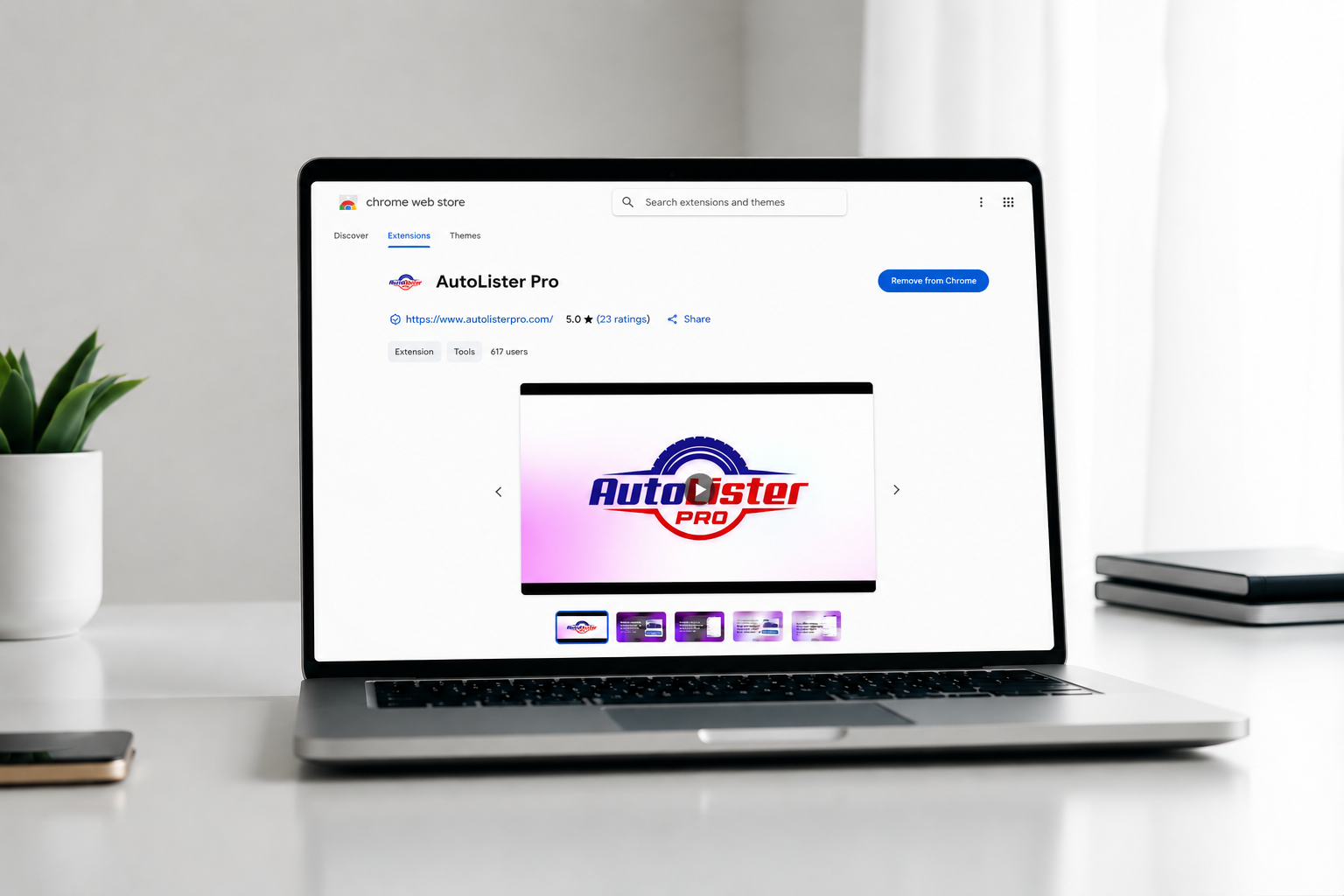
After signing up for AutoLister Pro, you'll receive an email with a link to the Chrome Web Store listing. Click Add to Chrome → Add Extension. Chrome installs the extension in under 10 seconds. You'll see the AutoLister Pro icon appear in your toolbar (top-right area). If it isn't visible, click the puzzle-piece icon and pin AutoLister Pro.
Step 2 — Connect Your Account
Click the AutoLister Pro icon. A login prompt appears. Enter the email and password you used at signup. Click Sign In. Your account is now connected — you'll see your plan details and a quick-start prompt.
Step 3 — Navigate to Your Inventory Source
Open a new tab and go to your inventory source — autotrader.com, cargurus.com, cars.com, carsforsale.com, or your dealership website's vehicle detail page. Navigate to a specific vehicle. Make sure the full details are visible — year, make, model, price, mileage.
Step 4 — Post Your First Listing
With the vehicle page open, click the AutoLister Pro icon. The panel shows the detected vehicle. Review the pre-filled info: year, make, model, price, mileage, condition, and the AI-generated description. Make any edits — the description in particular can be customized before posting. When you're satisfied, click Post to Marketplace. AutoLister Pro opens a Facebook Marketplace tab and fills every field automatically. Click Confirm in Facebook. Your listing is live. Total time from clicking the extension to live listing: under 30 seconds.
Step 5 — Set Up Auto Renew
In the extension panel, open Settings and enable Auto Renew. Set the renewal frequency (7 days is recommended). Auto Renew automatically refreshes all your active listings on schedule — keeping them fresh in the algorithm and visible to buyers without any manual work.
Step 6 — Customize Your Banner Overlay
In Settings → Banner Overlay, upload your name, dealership logo, or any text you want to appear on every listing photo. Once set, every photo in every listing automatically includes this overlay — consistent branding across your entire Marketplace presence.
Troubleshooting Common Setup Issues
- Extension not detecting vehicle: Make sure you're on the actual vehicle detail page — not a search results page. Scroll down so all details load.
- Marketplace not opening: Check that you're logged into Facebook in Chrome. Refresh the Facebook tab and click Post again.
- Extension icon missing: Click the puzzle piece in Chrome's toolbar and pin AutoLister Pro.
- Login issues: Reset your password at autolisterpro.com and try again.
- Still stuck: AutoLister Pro's support team responds in minutes via website chat or phone.
Want the deeper dive? see our honest AutoLister Pro review for the full breakdown of features, pricing, and dealer results.
Frequently Asked Questions
How long does it take to install AutoLister Pro?+
Under 10 seconds to install the Chrome extension, and most first-time users are live with their first Marketplace listing within 4 minutes.
Does AutoLister Pro work on any browser?+
AutoLister Pro is a Chrome extension and works in any Chromium-based browser including Chrome, Edge, Brave, and Opera.
What inventory sources does AutoLister Pro support?+
AutoTrader, CarGurus, Cars.com, CarsForSale, and most dealership websites that display structured vehicle detail pages.
What do I do if the AutoLister Pro extension doesn't detect my vehicle?+
Make sure you're on the vehicle detail page (not search results), scroll down so all details load, and refresh the page if needed.
Ready to put this into practice?
AutoLister Pro advertises 618+ users automating their Marketplace listings. Results vary.
Get Started NowAutoLister Pro Team
We help car salespeople and dealerships sell more by automating the boring parts of Facebook Marketplace. Tips, playbooks, and tools from the front lines of modern car sales.